How to digitize handwritten notes: 8 ways compared
25 October 2026 · 8 minute read
Almost every answer to this says the same thing: buy an iPad, buy an Apple Pencil,
start again in GoodNotes. That is advice for the notes you have not written yet. It
does nothing about the notebooks already in the drawer.
This is about those. Eight ways to get handwriting off paper into something you can
search and edit, and the one thing most of them quietly fail at.
In short
Photographing a page is solved and free. Turning that photo into usable text is where methods differ.
Most "scanner" apps give you a PDF picture of your handwriting, not text.
Cursive is the dividing line. Neat printing works almost everywhere; joined-up writing does not.
You do not need an iPad. Not one method here requires one.
The part nobody separates
“Digitize” covers four different jobs, and tools stop at different
points. That is why two people can both say a method worked and mean different
things.
A PDF of your handwriting is not digitized handwriting. It is a photo in a different wrapper.
What people actually ask
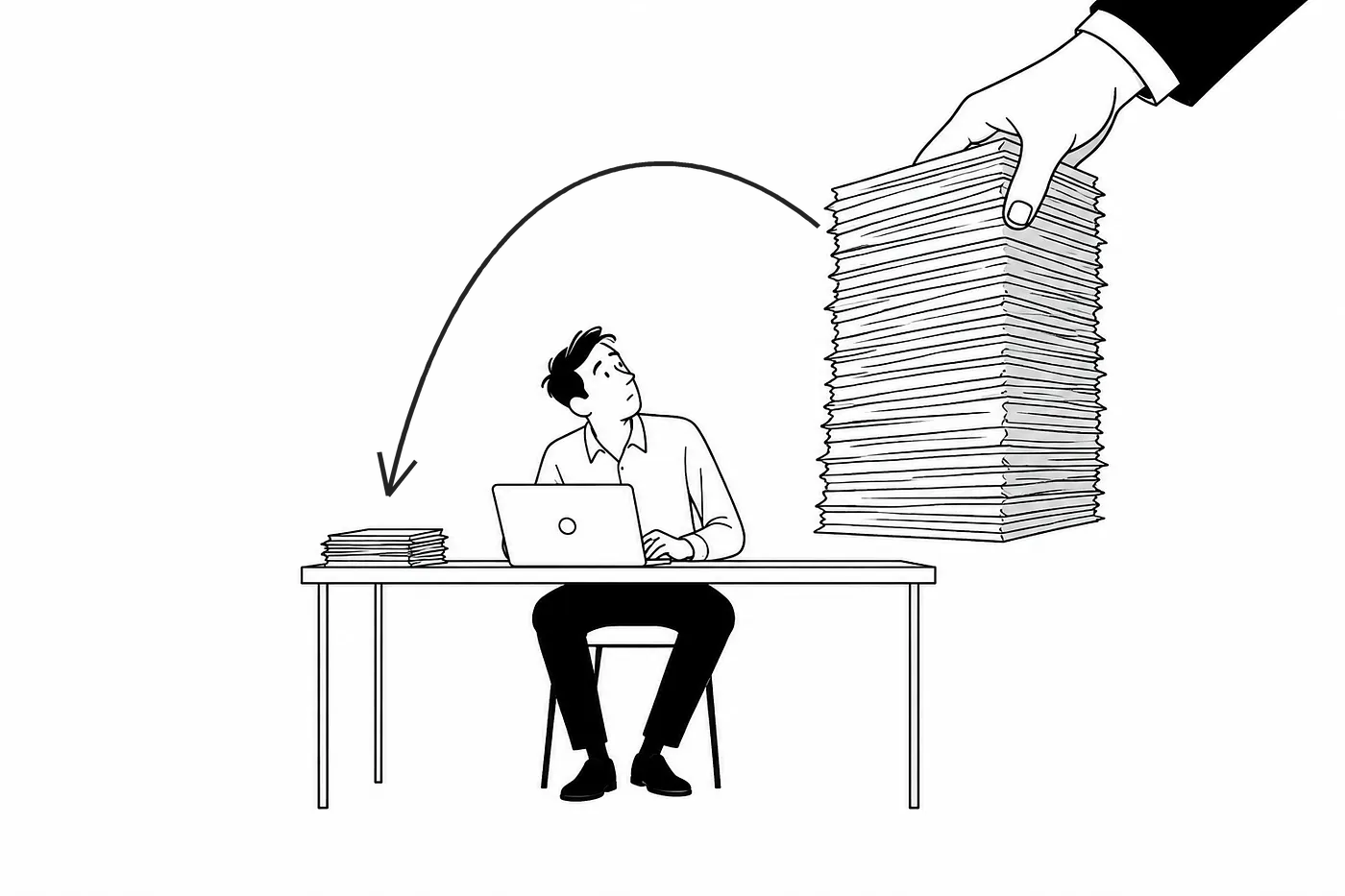
The threads Google ranks for this are years old and still unresolved. The shape
repeats: a backlog, and advice that assumes you do not have one.
“I have a few old notebooks containing notes that date back to 2013, so
almost 10 years of…”
That solves a different problem. It changes how you write from now on; it does not
touch 2013. Everyone asking already owns a phone with a very good camera, and that is
enough for every method below.
The eight, at a glance
Capabilities as documented by each maker, October 2026. Nothing here was independently benchmarked.
Method
Cost
Joined-up writing
Editable text
Good for a backlog
Phone text grab
Free
Poor
Yes
No, one page at a time
Scan to PDF
Free
n/a
No, it is a picture
Yes, for storage only
Polishr
Free tier
Usually
Yes, in set shapes
Page by page
ChatGPT or Gemini
Free tier
Usually
Yes
Slow, you re-prompt
Google Drive OCR
Free
No
Yes
Yes, bulk upload
Handwriting OCR apps
Mostly paid
Yes, claimed
Yes
Yes
Transkribus
Credits
Yes, its speciality
Yes
Built for it
Write digital instead
Hardware
Yes
Yes
No, future notes only
The eight in detail
01
The text grab already on your phone
Point the camera at a page and copy the words out of the frame. Apple documents
this as Live
Text; on Android it is Google Lens, and
Google Keep has it built
into a note.
Worth knowing: Apple's documentation describes Live Text as reading text in the
camera frame. It does not promise handwriting, and it handles tidy block capitals far
better than anything joined up.
Best for: one page, right now, for nothing.
02
Scan to PDF, and the app that just died
Every phone can turn a page into a tidy, straightened PDF: on an iPhone it is built
into Notes and Files, and Google Drive and
OneNote do it too.
The one most guides still recommend is gone.
Microsoft's
own notice says Lens was pulled from both app stores on 9 February 2026 and cannot
make new scans after 9 March; it points people to OneDrive instead. Any article still
recommending Lens has not been checked this year.
The catch with all of it: you get a picture of your handwriting. Not text. If the pages are decades old rather than last week's, the handling comes before the app, and that is covered in digitizing old letters.
Best for: archiving paper you need to keep but not edit.
Photograph the page and it comes back as text with a shape already applied: clean
notes, bullet points, a table, action items, flashcards, a slide outline or an email
draft. You adjust it in plain words: shorter, less formal, as a table. Then it files
into collections.
It is a phone app, so it is one page at a time. Nobody is feeding ten notebooks
through it in an afternoon. It needs a connection, and it is iPhone only.
Best for: notes you want to actually use afterwards, not just store.
04
ChatGPT, Gemini or Claude
Photograph the page, ask for a transcription, and you will usually get a good one, cursive included. There is a longer look at whether ChatGPT can read handwriting, including where it quietly invents words. These read messy handwriting better than traditional character
recognition because they use context to guess a word rather than matching shapes.
The cost is repetition: you retype the instruction every time, with no memory of
last month's pages and no search across them. Fine for one page, tiring at page
forty.
Best for: difficult handwriting, when you only have a few pages.
05
Google Drive, opened with Google Docs
Upload an image or PDF, right-click, open with Google Docs, and the text appears
above the image. Free, no app, and it will take a whole folder.
Read Google's own
requirements first: files under 2 MB, pages the right way up, and “common
fonts, such as Arial or Times New Roman.” That last line is the giveaway. It is
built for print, and tables and columns are explicitly not detected.
Best for: bulk printed pages. Not for cursive.
06
Dedicated handwriting OCR apps
Pen to Print is the best known, and
Evernote added
its own in 2025. Built for handwriting rather than print, with proper multi-page
handling and exports.
Most put the useful volume behind a subscription, and accuracy still depends on how
you write.
Best for: a steady stream of pages, if you will pay monthly.
Built by and for archives, which means it was designed for the hard case: old,
joined-up, inconsistent handwriting, at volume. You can train it on one person's hand,
which nothing else here offers.
It is a workflow, not a tap. Expect to upload, wait, and spend time on setup, and it
runs on credits.
Best for: ten years of notebooks, or anything written in cursive.
08
Stop writing on paper
The advice every thread gives. An iPad with GoodNotes
or Nebo, or a reMarkable,
converts handwriting as you write it, and it works well.
It is also the most expensive answer to a question about paper you have already
filled. Worth it if you were buying one anyway. Not a solution to this problem.
Best for: the notes you have not taken yet.
If you have a backlog, do it in this order
The mistake is treating ten notebooks as one job. Photograph everything once so
nothing is lost, then convert only what you will actually read again.
Everything gets photographed. Only a fraction ever needs to become text.
What it is
What to do
Effort
Anything you would be upset to lose
Photograph the page, store the file
Seconds each
Something you need to search later
Run it through text recognition
A minute
Something you need to rewrite or send
Convert, then reshape it
A few minutes
Everything else, and it is most of it
Leave it on paper
None
Daylight, flat, straight on. Every method improves sharply with
a well-lit page, and none recover from a dim, angled one.
One page per image. Two pages in one photo confuses every tool
here about reading order.
Check numbers and names by hand. Every method is weakest exactly
where a mistake matters most.
The same split applies to messy notes in general: capture is easy, the pile
afterwards is the real work. More on that in
the brain dump apps comparison.
Common questions
What is the best way to digitize handwritten notes?
It depends on whether you need a picture or words. For a record, photograph the pages
and stop. For text you can search and edit, use your phone's built-in text grab if your
writing is neat and an AI app if it is not. For a backlog in cursive,
Transkribus is the only option here built for
that job.
Can ChatGPT digitize handwritten notes?
Yes, and it is one of the better options for difficult handwriting. Photograph the
page, attach it, ask for a transcription. It reads cursive more reliably than
traditional character recognition because it uses the sense of the sentence to resolve
an unclear word. It does not keep pages organised afterwards, so it suits a handful
rather than a drawer full.
What is the best app to digitize handwritten notes?
There is no single answer, and anyone giving one is selling something. Free and
instant: the camera app you already have. Conversion with structure: a handwriting app
such as Pen to Print, Evernote's
transcription, or Polishr. Archives:
Transkribus. Avoid anything still
recommending Microsoft Lens, which no longer exists.
How do I transfer handwritten notes to my computer?
Photograph them, and they are already there if your photos sync. For text rather
than images, either convert on the phone and let it land in your usual note app, or
upload the photos to Google Drive and open them
with Google Docs, which does the recognition on the desktop side.
Is there a free way to do this?
Yes, entirely. Your phone's camera, its built-in text recognition, and Google Drive
opened with Google Docs cost nothing and cover most neatly handwritten pages. Paying
buys accuracy on cursive and the ability to get through a lot of pages at once.
Will any of it read my cursive?
This is the dividing line. Built-in phone recognition and Google Drive are designed
for print and struggle. AI models and dedicated handwriting tools do much better.
Nothing reads genuinely bad handwriting reliably, so proofread anything with a number,
a name or a date in it.
Do I need an iPad?
No. Not one method here requires one. An iPad changes how you write in future and
does nothing for paper you have already filled. It dominates the advice because it is
the easy thing to recommend, not because it answers the question.
What about ten years of notebooks?
Photograph all of it, convert almost none of it. Converting thousands of pages means
proofreading thousands of pages. Store the images so nothing is lost, then pull out only
the pages you find yourself wanting back.
Will the layout survive?
Usually not. Arrows, margin notes and diagrams go first, and Google explicitly notes
that lists, tables and columns are unlikely to be detected. If the layout carries the
meaning, keep the photo as well as the text.
Photograph it instead
Point your camera at the page.
Polishr reads the handwriting and hands it back as clean notes, bullet points, a table, action items or flashcards. Then you change it in plain words: shorter, less formal, as a table.
Sources and notes. Microsoft Lens retirement dates are from
Microsoft's
support notice. Google Drive's conversion requirements are from
Google Drive Help. Live Text
behaviour is as described in the
iPhone
User Guide. Quotes are from public discussion threads on
r/ObsidianMD and
r/productivity, quoted as search
results display them. All other capabilities are as documented by each maker in October
2026 and change often; nothing here was independently benchmarked. Polishr is
not yet released on the App Store.